
Your VRChat safety settings live in the Quick Menu, accessible by pressing Escape on desktop or your controller's menu buttons in VR. The fastest safe choice is to set your Shield Level to Normal for everyday sessions. For unfamiliar public rooms, switch to Maximum. If something goes wrong fast, hit Shift+Esc on desktop (or both triggers + both menu buttons in VR) to activate Safe Mode immediately.
Recommended starting configuration:
- Open Quick Menu → navigate to the Safety or Shield Levels tab
- Select Normal as your default shield
- Switch to Maximum when entering any public world with strangers
- Use Safe Mode as an emergency override during harassment or severe lag
- Build a Custom shield to fine-tune which features Visitors and New Users can send your way
Normal is the right default for most people. VRChat's Safety and Trust System is designed so that leaving it on Normal already blocks the most common nuisances: disruptive shaders, loud avatar audio, and malicious particles.
Table of Contents
- What the VRChat Trust and Safety system actually does
- Trust ranks explained: what each level means for you
- Shield levels: what Maximum, Normal, None, and Custom each block
- How to open and change your safety settings step by step
- Per-user controls: hide, show, mute, block, and report
- Safe Mode: your emergency override and when to use it
- Practical presets for common situations
- Troubleshooting common safety setting problems
- Key Takeaways
- Why moderated communities make Safety settings work better
- Mellozone: moderated VRChat meetups with safety built in
- Useful sources
What the VRChat Trust and Safety system actually does
The Trust and Safety system is VRChat's built-in layer of protection that combines two things: Trust Ranks (a reputation score for every account) and Shield Levels (your personal filter for what you receive from other users). Together, they determine which avatar features from which users can reach you at any given moment.
The system can block or allow a specific set of incoming features:
- Voice/microphone audio from other users
- Avatar visibility (whether you see their full avatar or a fallback)
- Avatar audio (sounds embedded in avatars, separate from voice)
- Shaders (screen-space effects that can cause visual disruption or lag)
- Lights and particles (effects that can tank frame rates or be used to harass)
- Custom animations and animated emoji
- User icons and custom images
- Drones (avatar-attached objects)
The practical value is real. Screen-space shaders can fill your entire view with noise; loud avatar audio can blast your ears without warning; particle effects can drop your frame rate to single digits. The Safety system intercepts all of these before they reach you, based on the sender's Trust Rank and your current shield setting. Most users can leave it on Normal and never think about it again. Those who host events, stream, or spend time in busy public worlds will want to go deeper.
Trust ranks explained: what each level means for you
Trust Ranks are calculated automatically by VRChat based on an aggregate of signals: time spent in-world, social connections, content contributions, and flagged behavior. No staff member can manually change a rank. If an account accumulates reports for disruptive behavior, its rank drops; consistent positive participation pushes it up.
The five ranks, from lowest to highest:
| Trust Rank | Key Permissions | Shield Treatment |
|---|---|---|
| Visitor | Starting rank; cannot upload avatars or worlds | Most restrictive by default |
| New User | Can upload avatars and worlds; uploaded worlds stay in Community Labs | Restricted; shaders/particles often blocked |
| User | Can publish worlds to Community Labs | Moderate restrictions |
| Known User | Established presence; broader community recognition | Fewer restrictions at Normal |
| Trusted User | Long-term, well-regarded account | Least restricted at Normal |
There is also a Nuisance designation. It is behavior-based and automated: when a user earns it, a skull icon appears next to their name in the Quick Menu, and their features are hidden by default across most shield modes. This acts as an extra layer of protection that runs quietly in the background.
One detail worth knowing: experienced users can choose to display a lower rank label, appearing as "User" even if they hold a higher rank. This changes how the Safety system treats them in certain rooms, which some community hosts use strategically to align with event-specific Custom presets.
Your Custom shield settings are configured per Trust Rank, not globally. That distinction matters because it lets you be strict with Visitors while staying relaxed with Known and Trusted users in the same session.
Shield levels: what Maximum, Normal, None, and Custom each block
Shield levels are the four presets that control how aggressively the Safety system filters incoming avatar features. Here is how they map to real-world use:
| Feature | Maximum | Normal | None | Custom |
|---|---|---|---|---|
| Voice (mic audio) | Blocked (non-friends) | Allowed | Allowed | You decide per rank |
| Avatar visibility | Hidden (non-friends) | Shown for higher ranks | Shown | You decide per rank |
| Avatar audio | Blocked | Blocked for low ranks | Allowed | You decide per rank |
| Shaders | Blocked | Blocked for Visitors/New Users | Allowed | You decide per rank |
| Lights & particles | Blocked | Blocked for low ranks | Allowed | You decide per rank |
| Custom animations | Blocked | Blocked for Visitors | Allowed | You decide per rank |
| Animated emoji | Blocked | Blocked for Visitors | Allowed | You decide per rank |
| User icons | Blocked | Shown for higher ranks | Shown | You decide per rank |
| Custom images | Blocked | Blocked for low ranks | Allowed | You decide per rank |
| Drones | Blocked | Blocked for low ranks | Allowed | You decide per rank |
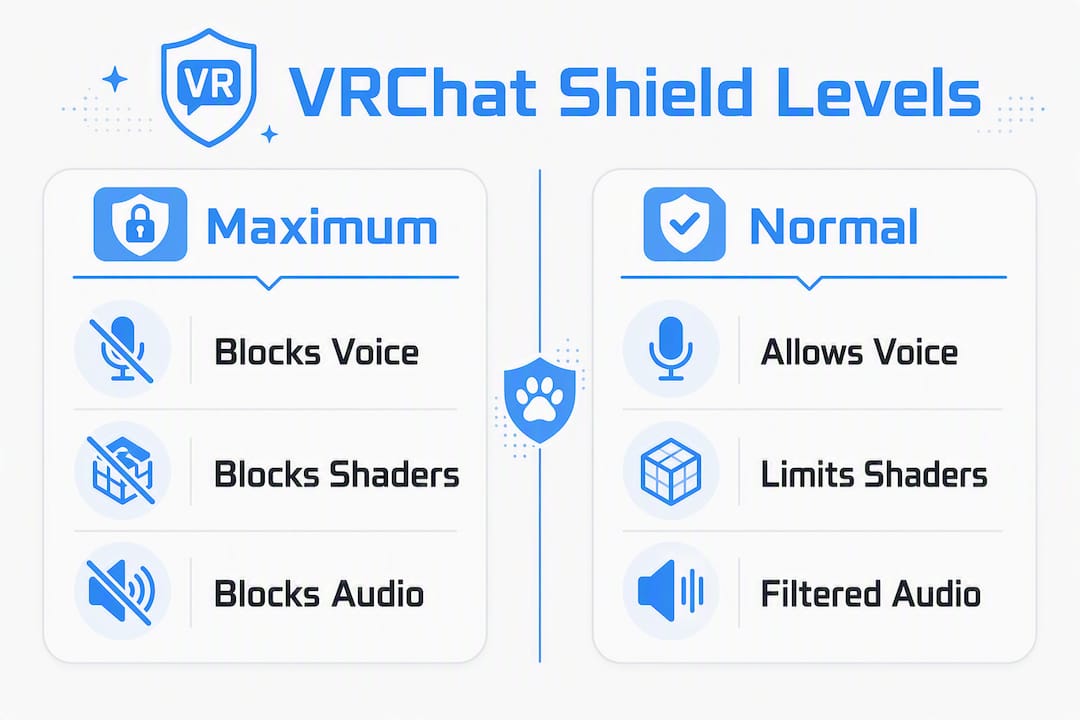
Maximum turns off nearly everything for anyone who is not your friend. Use it when you enter an unfamiliar public world, when you are being harassed, or when you want a clean, low-distraction experience. It is the recommended starting point for newcomers.
Normal is the balanced everyday setting. VRChat tunes it so that higher-ranked users get through with most features intact, while Visitors and New Users are still filtered on the riskier stuff like shaders and particles.
None removes almost all filtering. Only use this in a private room with people you fully trust, and understand that even on None, users with a Nuisance designation remain hidden.
Custom is where you get real control. You set each toggle per Trust Rank, so Visitors might be blocked on shaders and audio while Known Users get everything through.
Pro Tip: Build your Custom preset before you need it. Set Visitors and New Users to block shaders, avatar audio, lights/particles, and custom animations. Relax those same toggles for Known User and Trusted User. Save it, then switch back to Normal for daily use. Your Custom preset stays ready whenever you need it.
How to open and change your safety settings step by step
On desktop
- Press Escape to open the Quick Menu.
- Click the Safety tab (it may appear as a shield icon depending on your client version).
- Select Shield Levels to see the four presets.
- Click Maximum, Normal, None, or Custom to apply immediately.
- If you chose Custom, a list of Trust Ranks appears below. Click each rank to expand its feature toggles.
- Toggle each feature (voice, avatar, shaders, etc.) on or off for that rank.
- Click Reset Custom Settings to wipe your Custom configuration and start fresh if something feels off.
In VR
- Open the Quick Menu using your controller's menu button (the binding varies by headset).
- Navigate to Quick Actions or the Safety panel.
- Select Change Shield Level to cycle through presets, or tap the shield icon directly.
- For Safe Mode, press both triggers + both menu buttons simultaneously — this is the emergency shortcut.
- To build a Custom shield, select Custom from the Shield Level menu, then use the rank list to toggle features per rank.
Verifying your settings visually
Once you are in a session, look at the nameplates above other users. If you see a shader icon with a red X or a speaker icon with a red X, that feature is being blocked for that person by your current shield. This visual feedback, described in the official Safety documentation, is the fastest way to confirm your settings are working as intended.
One important warning: Safe Mode currently overrides your Custom settings and wipes them. If you activate Safe Mode during an emergency, you will need to rebuild your Custom preset afterward. Keep a mental note of your preferred toggles, or write them down.
Per-user controls: hide, show, mute, block, and report
Shield levels apply to everyone in a session by rank. Per-user controls let you override that for specific individuals, which is often exactly what you need.
- Hide Avatar Globally: Open the Social panel or Quick Menu, select the user, and choose Hide Avatar Globally. This hides that specific avatar for you regardless of who wears it, and it persists until you toggle it off. Hiding a copy of an avatar does not affect other copies of the same avatar worn by different users.
- Show Avatar override: If your shield is hiding someone you actually want to see, tap the eye icon next to their name or select Show Avatar. This overrides the Safety system for that one person without changing your global shield.
- Mute: Silences a user's voice for you only. Use this for someone who is loud or disruptive but not reportable.
- Block: Removes the user from your session view and prevents interaction. More permanent than mute; use it when muting is not enough.
- Report: Opens a report flow with VRChat's moderation team. Use this for genuine violations: harassment, hate speech, or malicious avatar use. Collect context before reporting: note the world name, approximate time, and what happened. A clear report is more useful than a vague one.
One thing to keep in mind: hiding or showing someone's avatar only changes what you see. It has no effect on how they see you or how others in the room experience the session. Keep overrides purposeful and avoid using them as a substitute for reporting actual violations.
Safe Mode: your emergency override and when to use it
Safe Mode is not a shield preset. It is a full emergency override that forces Custom mode with nearly every feature turned off. Everyone except your friends appears as a simplified robot avatar, most audio is cut, and performance-heavy features are disabled immediately.
Activate it:
- Desktop: Shift + Esc
- VR: Both triggers + both menu buttons at the same time
Exit it: Open the Quick Menu and switch your Shield Level back to Normal, Maximum, or Custom.
Use Safe Mode when you are being actively harassed, when a disruptive avatar is causing severe lag, or when you need to triage a chaotic room fast. Friends are excluded from Safe Mode's restrictions, so your group stays visible and audible while strangers are filtered out.
Pro Tip: Safe Mode wipes your Custom preset when activated. If you rely on a carefully tuned Custom shield, jot down your settings before heading into high-risk public rooms so you can rebuild quickly after an emergency.
Practical presets for common situations
Not every session calls for the same configuration. Here are ready-to-use setups you can apply without guessing:
Newcomer in a public world Use Maximum. You do not know who is in the room or what their avatars do. Maximum keeps friends visible and filters everyone else. Once you get a feel for the space, drop to Normal.
Meetup with known friends Switch to Custom and relax the toggles for Known User and Trusted User: allow avatar visibility, voice, avatar audio, and animations. Keep Visitor and New User settings strict (block shaders, particles, avatar audio). This way, your crew gets the full experience while random joiners stay filtered.
Streaming or hosting a public event Use Maximum plus enable Streamer Mode from the Settings menu. Streamer Mode auto-declines friend requests and hides thumbnails, which protects your stream from unwanted reveals. The combination of Maximum and Streamer Mode is the recommended privacy configuration for anyone broadcasting.
Private trusted room None or a very relaxed Custom is fine here. Everyone in the room is known and trusted. Just remember that even on None, Nuisance-ranked users remain hidden by default.
When you switch presets mid-session, do a quick visual check: scan a few nameplates for the red-X icons to confirm the new shield is active. It takes ten seconds and saves confusion later.
Troubleshooting common safety setting problems
You still see a disruptive avatar after changing your shield First, check for a per-user Show Avatar override. If you previously clicked Show Avatar for that person, your shield will not hide them until you reverse it. Open the Quick Menu, select the user, and toggle Hide Avatar Globally. If the avatar is still visible, confirm your Shield Level actually changed by reopening the Safety tab.
Your Custom settings did not save This usually happens after Safe Mode activation, which wipes Custom settings. It can also follow a client update that resets preferences. Log out, log back in, and rebuild your Custom toggles. If the problem repeats, check that your VRChat client is fully up to date before rebuilding.
You want to disable safety temporarily Set your shield to None. Understand that this removes most filtering, though Nuisance-ranked users stay hidden regardless. Only do this in a private room with people you trust. Switch back to Normal before entering any public space.
Quick troubleshooting checklist:
- Update your VRChat client to the latest version
- Restart the session (leave and rejoin the world)
- Confirm your account's Trust Rank in the Quick Menu
- Check for per-user overrides that conflict with your shield
- If nothing resolves the issue, contact VRChat support with the world name, time, and a description of what you observed
Key Takeaways
VRChat's Safety and Trust system gives you layered, per-rank control over every incoming avatar feature, and Normal is the right default for most everyday sessions.
| Point | Details |
|---|---|
| Use Normal by default | Normal blocks the most common nuisances for low-ranked users while keeping your experience open for trusted ones. |
| Switch to Maximum in public rooms | Maximum filters nearly everything from non-friends, making it the safest choice for unfamiliar or crowded spaces. |
| Safe Mode is for emergencies only | Shift+Esc (desktop) or both triggers + both menu buttons (VR) activates Safe Mode; it wipes Custom settings when used. |
| Custom shields work per Trust Rank | Set strict toggles for Visitors and New Users; relax them for Known and Trusted Users in the same session. |
| Mellozone uses active moderation alongside presets | Mellozone pairs Safety preset guidance with live host moderation so members get a consistently safer meetup experience. |
Why moderated communities make Safety settings work better
VRChat's tools are only as effective as the people using them. A well-run moderated meetup adds a human layer on top of the technical one, and the difference in session quality is noticeable.
A typical moderated meetup flow at a community like Mellozone starts before the event: hosts communicate the recommended shield preset in the event announcement (usually Normal or a specific Custom configuration for the room type). When members arrive, hosts are already in the world with their own Custom shields tuned for the expected Trust Rank mix. If a disruptive user joins, the host handles the per-user override and report flow directly, so other members do not have to.
Community best practices that complement Safety settings:
- Require Normal or Maximum for all newcomers attending their first event
- Publish event-specific Custom preset recommendations in advance so members can configure before joining
- Maintain an incident log for each event so patterns are visible across sessions
- Make mental health resources available to members who experience harassment, not just moderation tools
- Use community transparency practices to communicate how moderation decisions are made, which builds member confidence over time
The combination of preset guidance and active moderation reduces the number of incidents members have to handle on their own. When you know the host has your back and the shield is already configured correctly, you can focus on the actual reason you showed up.
Mellozone: moderated VRChat meetups with safety built in
If you want a VRChat community where the Safety settings are already figured out for you, Mellozone is worth checking out. It is an 18+ furry and gamer community built around low-drama, moderated meetups where hosts actively manage shield recommendations, per-user overrides, and incident reporting so members do not have to navigate those decisions alone.
Every Mellozone event comes with preset guidance, clear community rules, and active hosts who know the Safety system well. New members get onboarding support, and the community's safety resources are available to anyone who needs them. Whether you are new to VRChat or a veteran looking for a more intentional space, Mellozone runs the kind of moderated meetup where the technical and human sides of safety actually work together. Head to mellozone.site to learn more and join the community.
Useful sources
These are the official VRChat documentation pages and references used to build this guide. Check them for UI screenshots, release notes, and the most current Safe Mode behavior:
- VRChat Safety and Trust System (Official Docs) — the primary reference for shield levels, Safe Mode, and the full feature matrix
- Trust and Safety — VRChat Wiki — community-maintained wiki covering shield presets and Custom toggle details
- Trust Rank — VRChat Wiki — full breakdown of rank tiers, permissions, and the Nuisance designation
- Hiding Avatars — VRChat Help — official article on Hide Avatar Globally behavior and per-user overrides
- Why can't I upload avatars or worlds yet? — VRChat Help — explains New User and User rank requirements for content uploads
- Settings — VRChat Wiki — covers Streamer Mode, Comfort & Safety options, and Shield Level selectors
Check the official docs regularly. VRChat updates its Safety system periodically, and release notes often include changes to Safe Mode behavior, new shield toggles, or UI path adjustments.